
Mar 22, 2026
How to Provision Bare Metal Servers with iPXE
A complete guide to setting up an iPXE server from scratch — covering DHCP/TFTP configuration, HTTP file serving, Samba for Windows installs, and automated OS provisioning with Kickstart and Preseed.
Introduction
At the time, I was doing server QC at a hardware manufacturer — validating servers before shipment. The existing PXE setup worked, but it had a hard ceiling: everything was static. I needed dynamic boot logic, where the server could decide what to boot based on who was asking. That meant HTTP, scripting, and eventually PHP-generated boot responses. PXE couldn't do any of that. iPXE could.
iPXE is an open-source network boot firmware that lets servers boot over the network — no USB, no physical media. This guide walks through setting up a complete iPXE server from scratch — network configuration, DHCP/TFTP setup, HTTP file serving, Samba for Windows installs, and automated OS installation using Kickstart and Preseed.
The environment used here is based on CentOS 7.9, but most of the concepts apply regardless of your distribution.
What is iPXE?
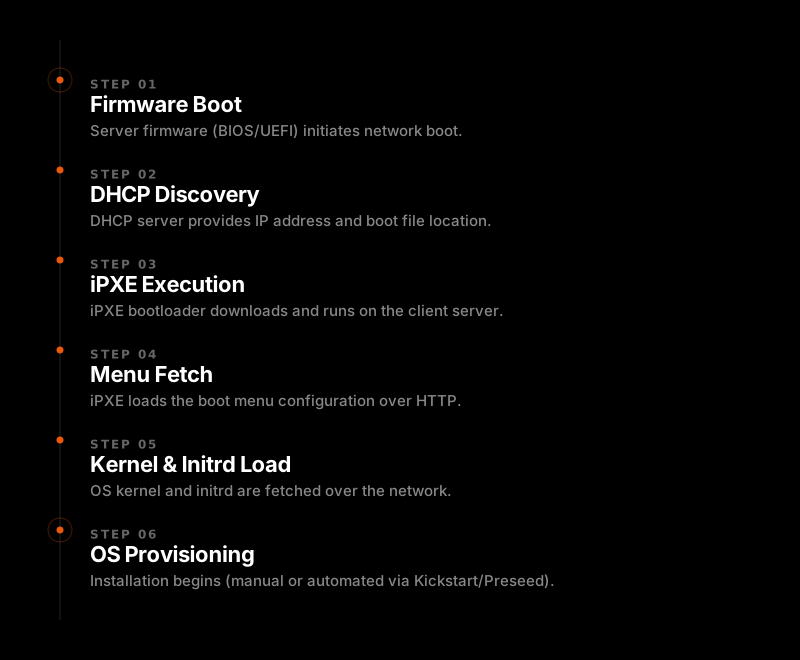
iPXE works by chainloading from the NIC firmware — the server powers on, requests a boot file via DHCP, and from there iPXE takes over and handles everything over HTTP.
It's similar to traditional PXE, but iPXE supports a much wider range of protocols and more importantly scripting. It works by implementing DHCP on the network using dhcpd or dnsmasq, and then delivering the kernel files required for OS installation to client servers that request a network boot via their NIC.
iPXE vs PXE
| Feature | PXE | iPXE |
|---|---|---|
| Supported Protocols | TFTP only | HTTP, FTP, iSCSI, FCoE, AoE |
| Boot Process Control | None | Scriptable — conditional logic supported |
iPXE's scripting capability is what makes it shine for large-scale server environments.
You can control the entire boot flow with conditional logic — different behavior depending on the machine, MAC address, or any other variable.
How the Boot Flow Works
1. Network Configuration (CentOS 7.9)
Before configuring dnsmasq, make sure the interface you'll use for iPXE has a static IP assigned and is up.
1.1 System Update & Package Installation
yum update -y
yum install dnsmasq make gcc -y && yum upgrade
1.2 Create the TFTP Directory
# This directory will store the iPXE boot files (.efi, .kpxe)
mkdir /tftpboot
1.3 Configure dnsmasq
Edit /etc/dnsmasq.conf with the following configuration.
# Disable DNS server
#port=0
# Listen on the iPXE boot interface only
listen-address=10.0.0.1 # <your_IP>
interface=eno1 # <your_interfacename>
bind-interfaces
# Enable built-in TFTP server
enable-tftp
tftp-root=/tftpboot
# DHCP range for eno1: 10.0.0.100 ~ 10.0.0.200
dhcp-range=interface:eno1,10.10.0.100,10.10.0.200,12h255.255.255.0,30m
# Default gateway
dhcp-option=interface:eno1,3,10.0.0.1
# Domain name
dhcp-option=15,pxe.local
# Broadcast address
dhcp-option=tag:eno1,28,10.0.0.255
## DNS for clients
server=8.8.8.8
domain-needed
bogus-priv
expand-hosts
# Tag DHCP request from iPXE
dhcp-match=set:ipxe,175
# Identify BIOS vs EFI clients via vendor class string
dhcp-vendorclass=BIOS,PXEClient:Arch:00000
dhcp-vendorclass=EFI,PXEClient:Arch:00007
# 1st boot file — Legacy BIOS
dhcp-boot=tag:!ipxe,tag:BIOS,undionly.kpxe,10.0.0.1
# 1st boot file — EFI
dhcp-boot=tag:!ipxe,tag:EFI,snponly.efi,10.0.0.1
# 1st boot file — Other (ARM64, etc.)
dhcp-boot=tag:!ipxe,tag:!BIOS,tag:!EFI,arm/intel--snp.efi,10.0.0.1
# 2nd boot file — Menu files
dhcp-boot=tag:ipxe,tag:BIOS,menu/boot.ipxe
dhcp-boot=tag:ipxe,tag:EFI,menu/boot2.ipxe
dhcp-boot=tag:ipxe,tag:!BIOS,tag:!EFI,menu/boot3.ipxe
1.4 Firewall Rules
firewall-cmd --add-service=dhcp --permanent
firewall-cmd --add-service=tftp --permanent
firewall-cmd --add-service=dns --permanent
firewall-cmd --add-service=http --permanent
firewall-cmd --reload
## or
systemctl stop firewalld
systemctl disable firewalld
1.5 Enable and Start dnsmasq
systemctl enable dnsmasq
systemctl start dnsmasq
2. Installing iPXE
The iPXE source is available on GitHub. You need make and gcc installed before compiling.
git clone https://github.com/ipxe/ipxe
cd ipxe/src
## Build the EFI binary (for UEFI boot):
make bin-x86_64-efi/snponly.efi
## Build the legacy binary (for BIOS/Legacy boot):
make bin/undionly.kpxe
## Once compiled, copy both files to `/tftpboot`:
cp bin-x86_64-efi/snponly.efi /tftpboot/
cp bin/undionly.kpxe /tftpboot/
3. Setting Up Apache (HTTPD)
iPXE delivers files to client servers over HTTP, so you need a web server to serve those files.
yum install httpd -y
Edit the Apache configuration:
vim /etc/httpd/conf/httpd.conf
# Set the document root to wherever your OS images and scripts will live:
# Default port
Listen 80
# Set your desired root directory
DocumentRoot "/data"
# Allow access to the data directory
<Directory "/data">
AllowOverride None
Options +Indexes
Require all granted
</Directory>
# Enable and start the service:
systemctl enable httpd
systemctl start httpd
All files that client servers need to download must be stored inside DocumentRoot.
In this setup, the root is /data. Adjust as needed for your environment.
4. Setting Up Samba (for Windows OS Installation)
To install Windows-based operating systems (Windows 2019, 2022, etc.) via iPXE, Samba is required.
Windows uses a different filesystem than Linux, so we need a file-sharing protocol that Windows can read.
yum install samba samba-client -y
# Enable and start Samba services
systemctl enable smb.service nmb.service
systemctl start smb.service nmb.service
# Allow Samba through the firewall
firewall-cmd --add-service=samba --zone=public --permanent
# Create the shared directory for Windows installation files
mkdir /data/srv
Edit /etc/samba/smb.conf:
[global]
workgroup = WORKGROUP
server string = iPXE Samba Server %v
netbios name = ipxe-server
security = user
map to guest = bad user
dns proxy = no
ntlm auth = true
[Public]
path = /data/srv
browsable = yes
writable = yes
guest ok = yes
read only = no
After completing this, verify that you can access the share from a Windows client.
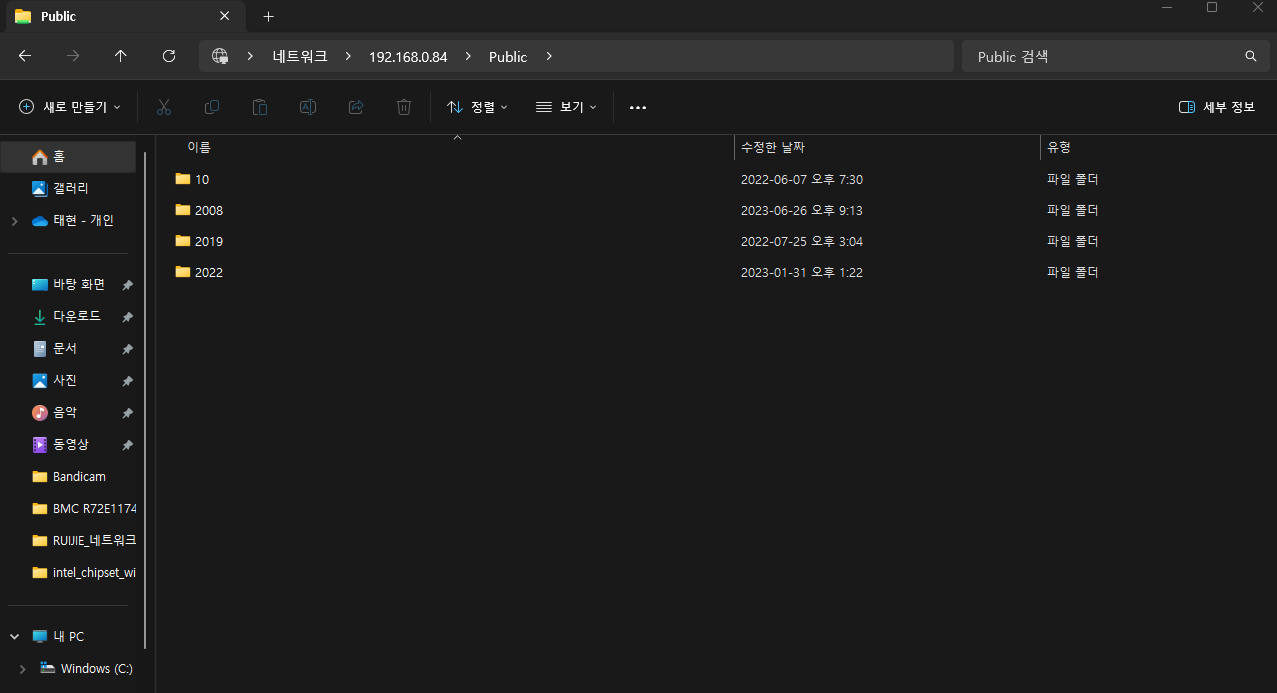
If you cannot connect, SELinux is likely the cause.
Check the current status and disable it if needed:
getenforce # 0: disable, 1: enforcing
# Disabled ← if already disabled, you're good
# Enforcing ← if this, you need to fix it
vim /etc/selinux/config.
# Change:
SELINUX=enforcing
# To:
SELINUX=disabled
# Then reboot.
5. Configuring the iPXE Boot Menu
Once the server is fully set up, you can put any OS or tool into iPXE — custom menus, Linux installs, Windows installs, DOS, diagnostics, whatever you need. The menu is fully scriptable, so each item just chains to another .ipxe file.
From the dnsmasq.conf configured earlier, the second boot files point to menu files:
# Since `tftp-root=/tftpboot`, the actual file path on disk is `/tftpboot/menu/boot.ipxe`.
dhcp-boot=tag:ipxe,tag:BIOS,menu/boot.ipxe # Legacy Mode
dhcp-boot=tag:ipxe,tag:EFI,menu/boot2.ipxe # UEFI Mode
dhcp-boot=tag:ipxe,tag:!BIOS,tag:!EFI,menu/boot3.ipxe # ARM
Initial Boot File
/tftpboot/menu/boot.ipxe: This file loads first via TFTP and immediately chains to the real menu hosted on HTTP.
#!ipxe
isset ${pxe-ip} || set pxe-ip http://10.0.0.1/data
console --x 1024 --y 768
console --picture images/legacy.png
chain ${pxe-ip}/ipxe-scripts/boot.ipxe
Main Menu File
/data/ipxe-scripts/boot.ipxe: This is where you define all the OS and tool options that appear in the boot menu.
Every iPXE script file must start with #!ipxe on the very first line. For detailed menu options and command references, see ipxe.org.
# /ipxe-scripts/boot.ipxe
#!ipxe
isset ${pxe-ip} || set pxe-ip http://10.0.0.1/data
goto main
:main
item redhat REDHAT
item ubuntu UBUNTU
item windows WINDOWS
item tools TOOLS
item shell SHELL
item exit EXIT
choose --default redhat option && goto ${option}
:redhat
chain ${pxe-ip}/ipxe-scripts/redhat.ipxe
:ubuntu
chain ${pxe-ip}/ipxe-scripts/ubuntu.ipxe
:windows
chain ${pxe-ip}/ipxe-scripts/win.ipxe
:tools
chain ${pxe-ip}/ipxe-scripts/tools.ipxe
:shell
shell
:exit
exit
6. OS Installation via iPXE
To install an OS through iPXE, you first need to download the ISO and extract it to the HTTP server.
6.1 Mount and Extract the ISO (CentOS 7.9 Example)
mount CentOS-7-x86_64-Everything-2009.iso /mnt
cp -rf /mnt/* /data/OS/centos/7.9
Verify the extracted files:
ls /data/OS/centos/7.9
# Expected output:
# EFI GPL images isolinux Packages repodata RPM-GPG-KEY-CentOS-7 ...
6.2 Write the OS Installation iPXE Script
#!ipxe
isset ${pxe-ip} || set pxe-ip http://10.0.0.1/data
:main
menu CentOS
item centos7.9 CentOS 7.9
item goback Go Back to Previous
choose --default centos7_9 option && goto ${option}
:centos7_9
echo "Installing CENTOS 7.9..."
imgfree
kernel ${pxe-ip}/OS/centos/7.9/images/pxeboot/vmlinuz inst.repo=${pxe-ip}/OS/centos/7.9/ ip=dhcp initrd=initrd.img
initrd ${pxe-ip}/OS/centos/7.9/images/pxeboot/initrd.img
boot || goto failed
:failed
echo Boot Failed.. Dropping to SHELL
chain ${pxe-ip}/ipxe-scripts/centos.ipxe
:goback
chain ${pxe-ip}/ipxe-scripts/boot.ipxe
- imgfree: clears any previously loaded data from memory.
- kernel: kernel specifies the kernel file for OS installation.
- initrd: loads the Initial RAM Disk.
- inst.repo: inst.repo specifies the location of the OS installation files (packages and config).
7. Automated Installation with Kickstart
Installing one server at a time is not practical at scale. Kickstart allows you to fully automate the installation: timezone, passwords, network, packages, disk partitioning, and more.
7.1 Kickstart for RHEL / Rocky / CentOS
Add inst.ks= to the existing kernel line:
:centos7_9
imgfree
echo "Booting CentOS 7.9..."
kernel ${pxe-ip}/OS/centos/7.9/images/pxeboot/vmlinuz \
inst.repo=${pxe-ip}/OS/centos/7.9/ \
inst.ks=${pxe-ip}/kickstart/centos.cfg \
ip=dhcp \
initrd=initrd.img
initrd ${pxe-ip}/OS/centos/7.9/images/pxeboot/initrd.img
boot || goto failed
Example Kickstart file centos.cfg
text
url --url="http://10.0.0.1/data/OS/centos/7.9/"
lang en_US.UTF-8
keyboard --xlayouts='us'
ignoredisk --only-use=sda
network --bootproto=dhcp --device=eno1 --onboot=yes --ipv6=auto --no-activate
rootpw --iscrypted $6$eKrxPamu...
timezone Asia/Seoul
skipx
bootloader --append="crashkernel=auto" --location=mbr --boot-drive=sda
autopart
clearpart --all
reboot
%packages
@^minimal-environment
@development
@legacy-unix
@standard
kexec-tools
%end
%addon com_redhat_kdump --enable --reserve-mb='auto'
%end
Kickstart files .cfg only work with Red Hat-based distributions (RHEL, Rocky, CentOS).
Kickstart syntax varies slightly between OS versions — always verify against the target OS documentation.
7.2 Preseed for Debian / Ubuntu
For Debian-based distributions, the equivalent of Kickstart is preseed.
The iPXE script is nearly identical — the main difference is the kernel and initrd filenames.
:ubuntu20_04
imgfree
echo "Booting Ubuntu 20.04.5..."
kernel ${pxe-ip}/OS/ubuntu/FocalFossa/SERVER/20.04.5/netboot/ubuntu-installer/amd64/linux
initrd ${pxe-ip}/OS/ubuntu/FocalFossa/SERVER/20.04.5/netboot/ubuntu-installer/amd64/initrd.gz
imgargs linux \
initrd=initrd.gz \
auto=true \
priority=critical \
netcfg/choose_interface=auto \
DEBCONF_DEBUG=5 \
url=${pxe-ip}/OS/ubuntu/FocalFossa/SERVER/20.04.5/preseed/preseed.seed
boot || goto failed
auto=true priority=critical: required when using preseed.netcfg/choose_interface=auto: automatically selects the network interface during installation (defaults to port 0 of the first NIC the server detects).- Preseed files use the .seed extension.
Example Preseed File preseed.seed
Below is a minimal preseed configuration for Ubuntu 20.04.
# Locale and keyboard
d-i debian-installer/locale string en_US.UTF-8
d-i keyboard-configuration/xkb-keymap select us
# Network configuration — use DHCP on first detected interface
d-i netcfg/choose_interface select auto
d-i netcfg/get_hostname string ubuntu-server
d-i netcfg/get_domain string local
# Mirror settings
d-i mirror/country string manual
d-i mirror/http/hostname string archive.ubuntu.com
d-i mirror/http/directory string /ubuntu
d-i mirror/http/proxy string
# Clock and timezone
d-i clock-setup/utc boolean true
d-i time/zone string Asia/Seoul
d-i clock-setup/ntp boolean true
# Disk partitioning — use entire disk, auto partition
d-i partman-auto/method string regular
d-i partman-auto/choose_recipe select atomic
d-i partman/confirm_write_new_label boolean true
d-i partman/choose_partition select finish
d-i partman/confirm boolean true
d-i partman/confirm_nooverwrite boolean true
# Root password (disabled — use sudo user instead)
d-i passwd/root-login boolean false
# Create a default user
d-i passwd/user-fullname string Admin
d-i passwd/username string admin
d-i passwd/user-password-crypted password $6$xyz...
# Package selection
tasksel tasksel/first multiselect standard, server
d-i pkgsel/include string openssh-server curl wget
# Skip extras
d-i pkgsel/upgrade select full-upgrade
popularity-contest popularity-contest/participate boolean false
# Bootloader
d-i grub-installer/only_debian boolean true
d-i grub-installer/bootdev string /dev/sda
# Finish
d-i finish-install/reboot_in_progress note
At this point, you have a fully functional iPXE server that can:
- Serve DHCP and TFTP for network boot clients
- Deliver a customizable boot menu over HTTP
- Install Linux (RHEL/Rocky/CentOS/Ubuntu) automatically via Kickstart or Preseed
- Serve Windows installation files via Samba
iPXE is one of those tools that looks simple on the surface but opens up a lot once you get it running — you can boot diagnostics tools, memory testers, custom live environments, or chain to completely different provisioning systems, all from the same server.
If something isn't working, the most common culprits are firewall rules, SELinux, and incorrect file paths in the dnsmasq configuration — those three cover the majority of issues.